


Making Your Website Accessible: ADA Considerations for Financial Brands
At Gate 39, we have been seeing more frequent inquiries about website accessibility, and for good reason. Often, without even realizing it, websites are designed and built in a way that creates unnecessary barriers for people with disabilities to access the information or tools that they need.
At its core, accessibility is about removing those barriers to ensure that all website users can successfully and equitably engage with your site. This then becomes a critical component of user experience (UX) design, brand trust, and, in some instances, regulatory compliance.
For financial organizations especially, accessibility can be important to their overall digital strategy. By taking a proactive approach now, you can create a more inclusive, user-friendly experience for all of your website visitors while also mitigating risk.
Why Website Accessibility Matters for Financial Firms
For many firms, website accessibility is directly tied to how clients access your services, understand your offerings, and engage with your brand. Since many core actions—from opening an account to completing forms or accessing account information—now happen online, if those experiences are not accessible, you are creating barriers for users who are trying to interact with your business. The impact shows up in a few key areas:
- Access to services: If a user cannot navigate your site, complete a form, or read key information, they cannot fully engage with your services.
- Risk exposure: Accessibility demands have increased in recent years, particularly for B2C financial organizations, putting more pressure on firms to meet compliance expectations.
- Client trust: A website that works for everyone reflects a higher standard of care and attention to detail, which directly impacts how your brand is perceived.
Accessibility is also not optional in many cases. The Americans with Disabilities Act (ADA) applies to businesses that are open to the public, which includes many financial institutions and their digital experiences.
5 Common Accessibility Barriers and How to Fix Them
1. Color selection
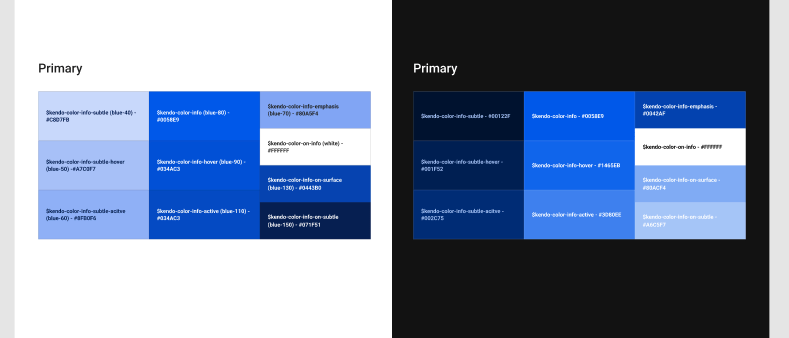
People with visual impairments or color blindness often face challenges with color use on websites. For example, if there isn’t enough contrast between the background and text, content can become unreadable. Relying on color alone to communicate information can also create issues, especially for people who use screen readers, which don’t describe text color. A common example is using red text to indicate required form fields.
Fix it: Aim for strong contrast between text and background, and don’t rely on colors to convey meaning. Add labels, icons, or helper text (e.g. “Required” next to a field instead of just making it red).
2. Visuals missing alt text
Visual content is an important part of your marketing strategy that helps get your point across and elicits emotions in your messaging. But for visually impaired individuals, those cues can be easy to miss. That’s where alternative text (“alt text”) comes in. Alt text describes images, illustrations, and charts so their purpose and meaning aren’t lost.
Fix it: When writing alt text, focus on the purpose of the image, not just what it is. Ask yourself, “What would someone miss if they couldn’t see this?” Keep it concise but descriptive. For example, instead of “chart,” write “Bar chart showing 30% increase in website traffic year over year.”
3. Lacking multiple audio formats
It's good practice to to consistently offer your content in multiple formats to maximize accessibility. For instance, adding audio narration to blog posts enables visitors with visual impairments to access the content, while including closed captions on all videos means that people with hearing disabilities can fully benefit from the information you're providing.
Fix it: Include audio narrations on your blog and enable captions on all videos. Be sure to review both for accuracy instead of relying on auto-generated versions alone.
4. Confusing web forms
People with disabilities might have a difficult time understanding, completing, and accurately submitting forms that lack elements such as clear instructions, error indicators, and clear labels that screen readers can explain to their users.
Fix it: Make sure every form includes descriptive labels and helpful instructions. When errors occur, clearly explain what went wrong in plain language (not just color cues) and guide users on how to fix it.
5. Mouse-only navigation
By default, most websites are designed for mouse-based navigation. However, for individuals who can’t use a mouse or trackpad, this can make it difficult to navigate your site, cutting them off from access altogether.
Fix it: Test your site using only your keyboard by navigating with the arrow keys and Tab key to move between links, buttons, and form fields. Use Enter or Space to select elements and make sure there’s a clear visual indicator (like an outline) showing the selection.
How Designers Approach Accessibility
Perspective from Lead Designer Nick Landsberger:
“The demand for adaptive theming has shifted from a nice-to-have to a baseline expectation, and as a Senior UX Designer, I treat dark mode and light mode as two sides of the same inclusive design coin—not merely aesthetic preferences, but accessibility necessities. Users with photophobia, migraines, or low vision often rely on dark interfaces to reduce eye strain, while others need high-contrast light modes for clarity.
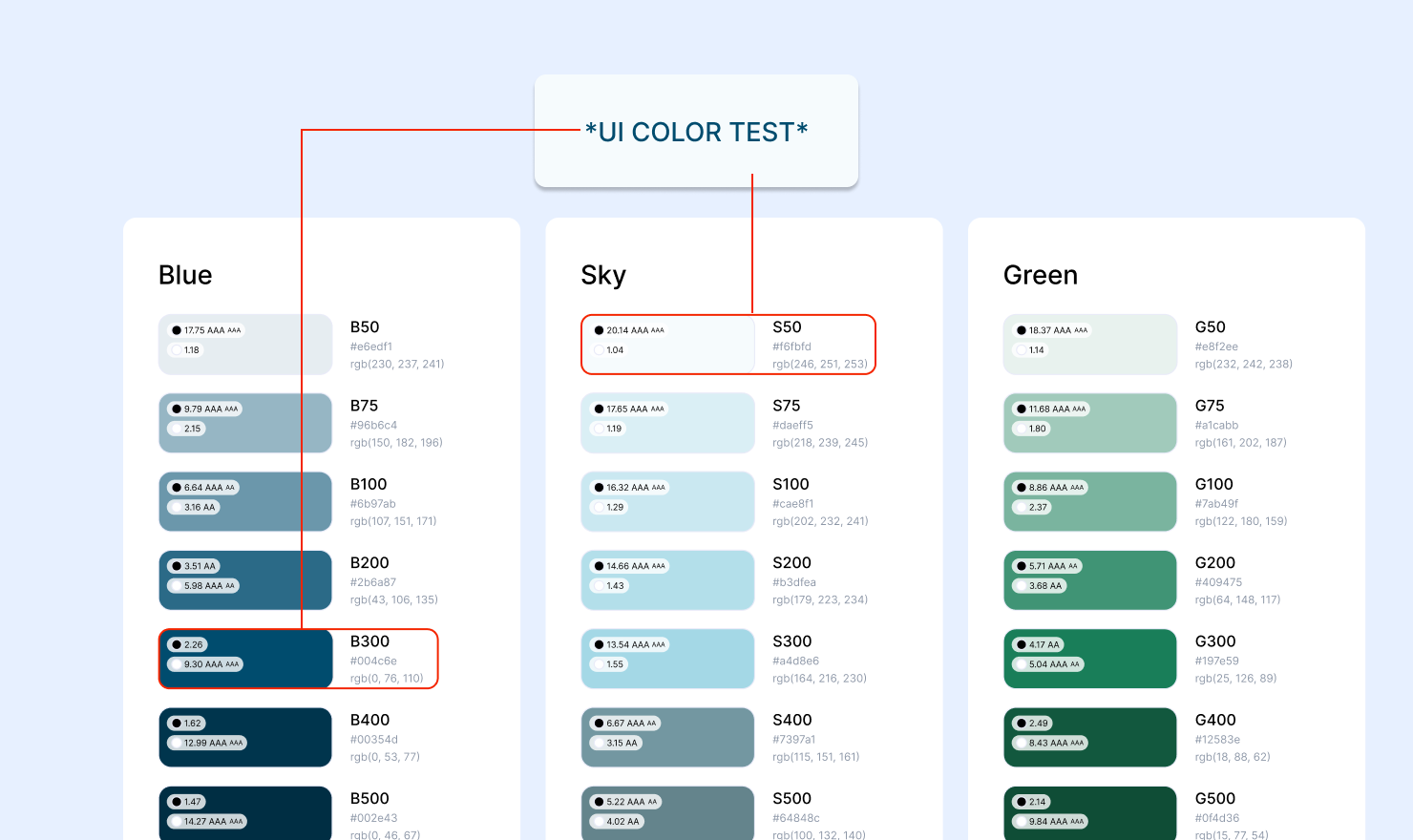
Building truly adaptive systems requires architecting color scales that invert gracefully without breaking usability. I start by defining semantic color roles rather than static values: instead of "gray-900," I use "surface-primary" and "text-primary" that hold different hex values depending on the active theme. This semantic abstraction ensures that when a component renders in dark mode, its background shifts to a deep neutral while its text lightens proportionally, maintaining that critical 4.5:1 contrast ratio without manual recalculation for every state.
In our Figma variable sheets, this translates to a structured hierarchy where each color scale—primary, secondary, error, success, warning—contains light and dark variants mapped to specific variable properties. For example, bg/primary might resolve to #FFFFFF in light mode and #121212 in dark mode, while text/primary inverts from #1A1A1A to #E0E0E0. I extend this to interactive states: hover, pressed, and focus states each have theme-specific values that preserve visibility without jarring brightness shifts.
The real power emerges when these variables cascade through component libraries—buttons, inputs, navigation bars—each referencing the same semantic tokens. When engineering implements system-level detection of prefers-color-scheme, the UI responds instantly to OS settings, respecting user autonomy and preventing that jarring "bright white flash" that makes an application feel instantly outdated. This dynamic responsiveness signals that the product respects user preference and accessibility needs at a fundamental level, building trust through technical sophistication and inclusive foresight.”
How Developers Bring Accessibility to Life
Perspective from Senior Developer Feiying Hu:
“A lot of accessibility wins come down to writing cleaner code, and honestly, that's something most developers are already wired to care about. When you build with semantic HTML from the start, using the right elements for the right purposes, screen readers can navigate the page the way a sighted user would naturally read it. Doing things "the right way" and doing things "the accessible way" end up being the same thing more often than people expect.
ARIA labels are genuinely misunderstood more than almost anything else we deal with. They're not a patch you apply at the end. Native HTML semantics should carry the weight, and ARIA should only come in when there's something the markup genuinely can't communicate on its own.
Keyboard navigation is where we see the most preventable gaps. Every interactive element needs to work without a mouse, and the focus state should never get removed just because someone thought it looked cleaner. Small thing, real impact.
Forms are probably the most common failure point on financial sites. Labels need to be programmatically linked, not just visually placed nearby. Error messages need to be specific and surfaced automatically. A vague "please check your form" message can make the whole form unusable for someone relying on assistive technology. Beyond forms, alt text, accessible icon labels, and avoiding color as the only way to communicate information are all things that tend to get rushed but matter more than teams realize.
Third-party tools are another blind spot. A chat widget or embedded calculator becomes your accessibility responsibility the moment it lives on your site. For testing, automated tools like Lighthouse are a good starting point but they only catch a fraction of real issues. Manual walkthroughs with actual screen readers like NVDA or VoiceOver are where you find out what the experience is truly like.
We've never finished an accessibility project and thought it wasn't worth it. For financial firms especially, your website is often the first impression a client gets. Making sure it works for everyone isn't a nice to have. It's just the right call.”
3 Steps to Get Started
Achieving total website accessibility does not happen overnight, but there are practical steps you can take to move in the right direction.
1. Build accessibility into your process. Accessibility is not a one-time project. As your site evolves, it should be built into your content, design, and development workflows.
2. Start with an audit. Evaluate your current site to identify gaps in areas like color selection, navigation, and alternative text.
3. Implement tools that support accessibility. Solutions like UserWay can help enhance accessibility by adding features such as screen reader support, keyboard navigation improvements, and visual adjustments. We have worked with clients to successfully implement these tools as part of a broader accessibility strategy, so reach out for more information!
If you are not sure where to start or want to evaluate your current site, our team can help. Contact us today to start a conversation.
You might also be interested in:
The AI email sounds great, until you realize it’s based on a deal record no one updated. Marketing’s new campaign has a similar problem: it missed...



Connect with us to discover how we can help your business grow.
.svg) Contact Us
Contact Us
.jpg)